
Codex usage check: how to see your weekly and 5-hour limits
Three ways to check your Codex usage — the /status command, the usage dashboard, and a widget — plus how to read the numbers and when your limits reset.
A Codex usage check answers two questions: how much of my limit is left, and when does it come back? Codex counts your ChatGPT plan’s usage against a short window and a weekly limit, and either one can stop a task halfway through. Here is where to find both numbers, and how to keep them in view without opening anything.
The quick answer: in the Codex CLI, type /status. In a browser, open the Codex usage dashboard. To see it without doing either, put Codex on your iPhone Home Screen or Mac menu bar with Nowdex.
What a Codex usage check should show
| Number | What it means |
|---|---|
| 5-hour limit | A short window that refills during the day. Hitting it means waiting a few hours. |
| Weekly limit | The bigger budget. Hitting it can mean waiting days. |
| Reset time | When each window refills. Every window has its own. |
| Reset credits | On some plans, credits that reset a limit early. A count, not a time. |
| Credits | On credit-based plans, the balance that keeps you working after the included limits run out. |
Which windows you see depends on your plan, and OpenAI adjusts the limits over time. Some accounts only report the weekly limit, so do not be surprised if the 5-hour row is missing.
1. In the terminal: /status
If you are already in a Codex CLI session, type /status. It lists your 5-hour and weekly limits as percentages, with the time each one resets. If it shows no limits yet, send one message and run it again.
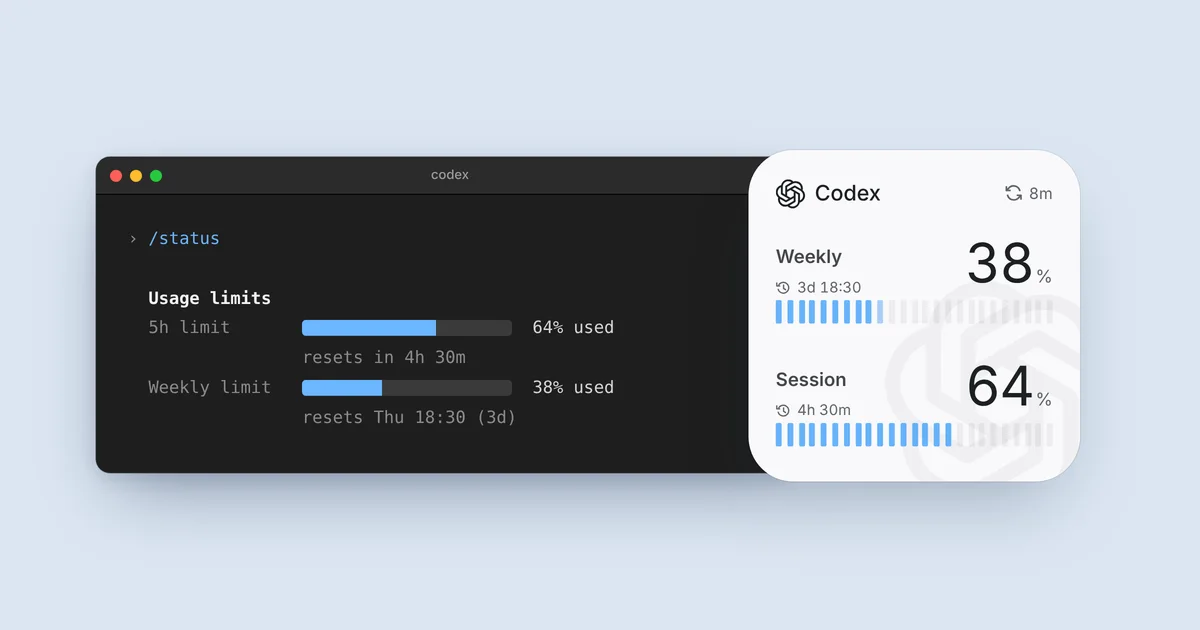
/status in the Codex CLI (the exact layout varies by version). Right: the same account in a Nowdex widget. Example data./status is the fastest check while you work. It is less helpful before you start: you need a terminal and a session open, which is exactly what you do not have on your phone or between meetings.
2. In the browser: the Codex usage dashboard
The usage page at chatgpt.com/codex/settings/usage shows your plan’s limits, reset times, and credits. Sign in with the same ChatGPT account you use for Codex. It is a good place for a weekly look at your pace, or to buy more credits when you run out.
It is still a full web page behind a sign-in. On a phone, that is several taps for two numbers.
3. At a glance: Codex on your iPhone and Mac
Nowdex reads the same limits from your Codex account and keeps them where you already look:
- iPhone and iPad widgets show the weekly limit and the 5-hour window, each with its reset time. Reset credits appear when your plan has them.
- The Mac menu bar shows up to two numbers from one account, with every window one click away.
- The Status screen lists every connected account, so Codex sits next to Claude, Cursor, and the rest.
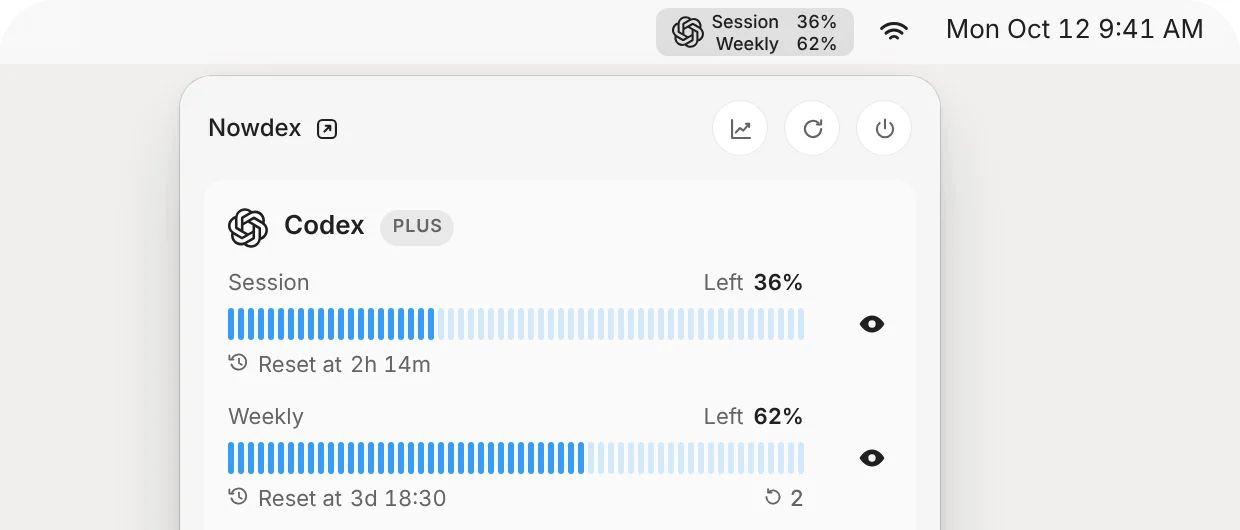
You connect your Codex account once; there is no Nowdex account to create. The free version covers one account, which is enough for Codex alone. Setup is in how to see your remaining usage on iPhone, and if you are deciding between a menu-bar tool and a phone app, see menu-bar trackers vs. an iPhone app.
Reading the numbers
- Used or left? The Home Screen widget shows how much you have used; the Mac menu bar shows how much is left, and
/statuslabels which one it prints. 64% used is 36% left, so check the label first. - Which reset matters. A countdown like
4h 30mbelongs to the 5-hour window. A day and time like3d 18:30is the weekly reset. If the weekly limit is nearly spent, waiting out the short window will not help much. - Reset credits are not a reset time. A credit count tells you how many early resets you have; the reset time tells you when the window refills on its own.
What is not a Codex usage check
- The OpenAI API usage page at platform.openai.com tracks API-key billing. It is separate from your ChatGPT plan, so an empty API dashboard says nothing about your Codex limits.
- Local token counters such as
ccusageor tokens.ci read your session logs and add up tokens and estimated cost. That is useful for knowing what you spent, but it is not your remaining quota. Nowdex shows both, separately: limits on Status, tokens and cost on the Usage tab.
When Codex is nearly out
- Check which window is low. If it is only the 5-hour window, a short break may be enough.
- Use a reset credit if your plan has one and the weekly reset is days away.
- Buy credits from the usage dashboard if you are on a plan that supports them.
- Switch agents. If Claude or Cursor has room, start the next task there. Checking all your AI limits in one place makes that call quick.
FAQ
How do I check my Codex usage?
Type /status in the Codex CLI, or open chatgpt.com/codex/settings/usage. To check from your phone or Mac without opening either, use a Nowdex widget or the menu bar.
When does the Codex usage limit reset?
Each window resets on its own schedule. The 5-hour window refills a few hours after you use it; the weekly limit resets once a week, at a time set for your account. /status, the dashboard, and Nowdex all show the exact reset time for your account.
Does API usage count against my Codex limit?
No. Codex with a ChatGPT plan uses your plan’s limits and credits. Using Codex with an API key is billed separately at API rates and shows up on the API usage page instead.
Can I check Codex usage on my iPhone?
Yes. Open the usage dashboard in Safari, or add a Nowdex widget to your Home Screen or Lock Screen to see your remaining Codex usage and reset times without opening anything.