How to check your Grok Bot usage (and when it resets)
Where to see your Grok Bot weekly usage — the plan screen, the Cursor dashboard, and a widget — plus how the weekly allowance, linked SuperGrok, and on-demand usage work.
Grok Bot runs on your Cursor account, and on most plans it comes with its own weekly allowance. Agent jobs can use a lot of it in one go, so two numbers are worth keeping an eye on: how much Grok Bot usage is left this week, and when it resets.
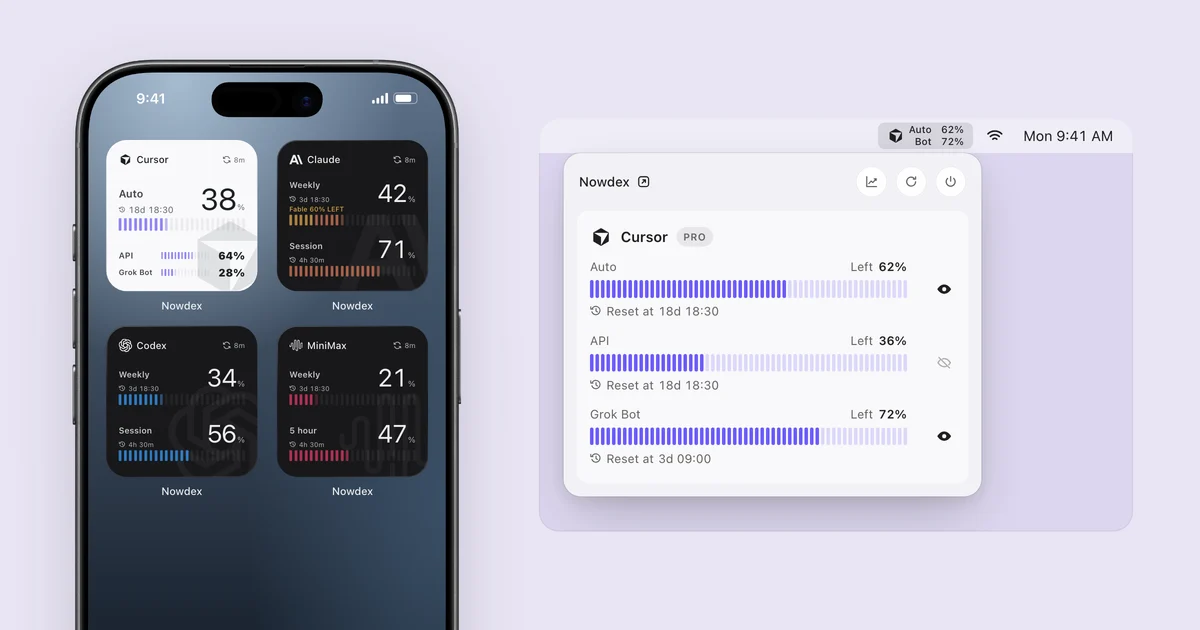
The quick answer: in Grok Bot, open the plan screen and look at Weekly usage limit (on the phone it is just Weekly usage). To see it without opening anything, connect your Cursor account to Nowdex, which shows Grok Bot as its own percentage with its own reset time on your iPhone Home Screen and Mac menu bar.
See Grok Bot without opening Grok Bot. Nowdex shows your weekly Grok Bot usage and reset time on iPhone, iPad, and Mac. Free to start, no account needed.

How Grok Bot usage is counted
Grok Bot’s allowance is not the same as Cursor’s monthly usage, which is the main source of confusion:
| Term | What it means |
|---|---|
| Weekly usage | The Grok Bot usage included with your plan or linked subscription. It resets every week. |
| Cursor’s monthly usage | Your Cursor plan’s included usage for the editor (Auto and API). It resets with your billing cycle, separately from Grok Bot. |
| On-demand usage | Extra Grok Bot usage after the weekly allowance runs out, billed through Cursor. It only happens if on-demand is on. |
| On-demand monthly limit | The cap on that extra usage. On the web it is the Monthly Limit on the Spending tab. |
Usage follows how much work your agents do, not how many messages you send: larger or longer agent jobs use more, and a single big job can take a large share of the week. The Mac and iPhone apps share one bucket tied to your signed-in account.
Where your allowance comes from
According to Cursor’s Grok Bot billing help:
- Cursor plans include Grok Bot: Pro, Pro+, and Ultra each get more weekly usage than the one before, and every member of a self-serve Cursor Teams plan has access.
- A linked SuperGrok, SuperGrok Plus, SuperGrok Heavy, or X Premium+ subscription grants Grok Bot usage on your Cursor account. It does not add to a Cursor plan: Grok Bot uses whichever one grants more.
- The X Subscription works differently. On Premium, Super, and Ultra, Grok Bot draws from one weekly pool shared with Cursor and the Grok apps, and you check it under Usage at grok.com/dashboard.
Plans change from time to time, so check your own plan screen for the current amounts.
1. In Grok Bot: the plan screen
The plan screen in Grok Bot shows your Weekly usage limit (Weekly usage on the phone) and how much of it is used. Manage Plan shows where the allowance comes from; a SuperGrok name there means it is a linked grant, not a second Cursor plan. When the weekly usage runs out and on-demand is off, Grok Bot tells you that you have reached your usage limit and waits for the weekly reset.
2. In the browser: the Cursor dashboard
Grok Bot usage is metered on your Cursor account, so on-demand usage and its cap live on the Spending tab of your Cursor dashboard. This is where you turn on-demand usage on or off and set the Monthly Limit. The dashboard is the place for spending; for the weekly allowance itself, the plan screen is clearer.
3. At a glance: Grok Bot on your iPhone and Mac
Opening Grok Bot’s settings every time you want a number gets old. Nowdex reads Grok Bot usage from your Cursor account and keeps it where you already look:
- Install Nowdex on iPhone, iPad, or Mac.
- Connect your Cursor account — the same account you use for Grok Bot. There is no Nowdex account to create.
- Open Status. The Cursor card shows Grok Bot next to Auto and API, with the time of its own weekly reset.
Then put it where you look anyway:
- iPhone and iPad widgets. The Cursor widgets show Auto, API, and Grok Bot together. The medium size draws each as its own ring with its reset time underneath.
- The Mac menu bar. You can show Grok Bot next to the clock; to stay compact it is labeled Bot, and the menu shows the full name and reset time.
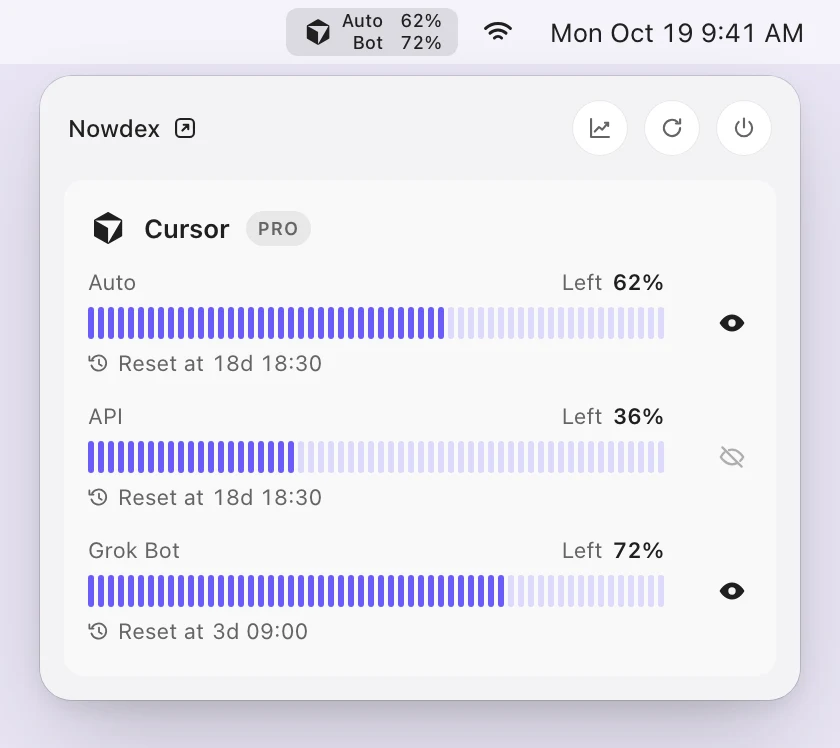
Because Grok Bot’s reset is tracked separately from Cursor’s monthly cycle, you see two different reset times — which is exactly what you need when deciding whether to wait or switch. If Cursor does not report a Grok Bot allowance for your account, Nowdex leaves Grok Bot blank instead of showing a made-up 0%.
Grok Bot is part of the Cursor connection, so the free version of Nowdex, which connects one account for one service, covers it. If you also use SuperGrok on grok.com, Nowdex can connect your Grok account as well and show the usage grok.com reports. That is a different meter from Grok Bot’s weekly allowance on Cursor, and a second service needs Nowdex Pro.
When Grok Bot usage is running low
- Check the reset time. If the week resets tomorrow, waiting may cost nothing.
- Scope the next job tightly. A small, well-defined task uses far less than an open-ended one.
- Decide on on-demand before you need it. Turn it on with a Monthly Limit you are comfortable with, or leave it off and stop at the weekly limit. A bot that is already running can finish past the limit.
- Use another agent. If Cursor, Claude, or Codex still has room, start the next task there. See how to check your Cursor usage and how to check all your AI limits in one place.
FAQ
How do I check my Grok Bot usage?
Open the plan screen in Grok Bot and look at Weekly usage limit (Weekly usage on the phone). On-demand spending is on the Spending tab at cursor.com/dashboard. On The X Subscription, check Usage at grok.com/dashboard instead. To see Grok Bot without opening anything, use a Nowdex widget or the Mac menu bar.
When does Grok Bot usage reset?
The included Grok Bot allowance resets weekly. That is separate from Cursor’s monthly billing cycle, so your Grok Bot reset and your Cursor reset are usually on different days.
Is Grok Bot usage the same as my Cursor usage?
No. On Cursor plans and linked subscriptions, Grok Bot has its own weekly allowance, separate from the monthly usage you spend in the editor. Only on The X Subscription does Grok Bot draw from a shared weekly pool.
Does linking SuperGrok add to my Cursor plan’s Grok Bot usage?
No. A linked SuperGrok or X Premium+ subscription and a Cursor plan do not stack; Grok Bot uses whichever grants more weekly usage.
What happens when I hit the Grok Bot limit?
If on-demand usage is on, Grok Bot keeps going and bills through Cursor up to your Monthly Limit. If it is off, Grok Bot stops until the weekly reset.
Can I see my Grok Bot usage on my iPhone?
Yes. Connect your Cursor account in Nowdex and add a Cursor widget to your Home Screen. It shows Grok Bot usage and its weekly reset next to your Auto and API usage.